
Picture a situation that could happen in any small office. An employee leaves on a Friday, on good terms. IT disables her account that afternoon, exactly as the checklist says.
Three weeks later, a client calls to ask why nobody answered a revised quote. The email arrived in the former employee's mailbox, but no one had been assigned to monitor it.
When an employee leaves, business data may remain in their mailbox, cloud storage, devices and connected apps. What happens next depends on the service, its settings, your retention rules and the steps your business takes. Blocking sign-in protects the account. Someone still needs to decide who takes responsibility for the email, files and access the employee handled.
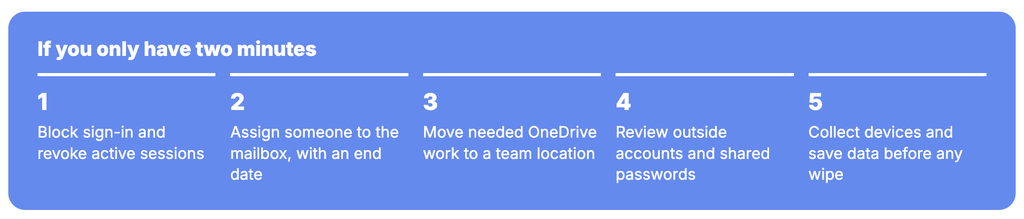
Four actions often get lumped together as "turning off the account." Each one does something different.
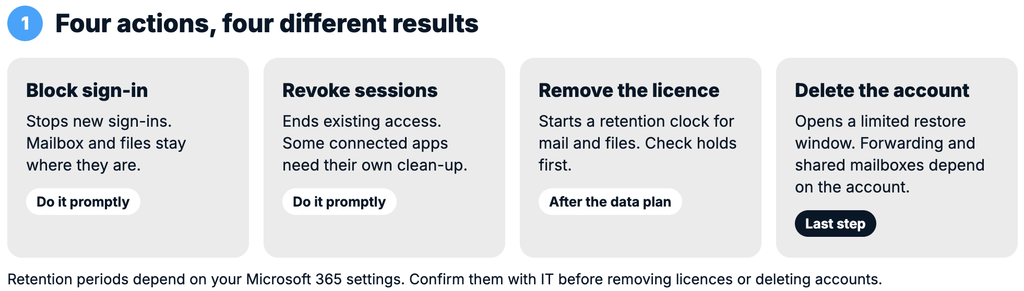
Treat those numbers as defaults to confirm in your own tenant. The practical rule is simple: secure access promptly, then follow a documented plan for the mailbox, files and accounts. Avoid deleting an account to tidy up the user list before you know what depends on it.
Start with the business need. Who should answer incoming messages? Should customers get an automatic reply naming a new contact? Does the company need older messages for reference?
Microsoft 365 offers three common arrangements, and many businesses combine them:
If you set up forwarding or a shared mailbox, Microsoft advises keeping the former employee's account, because the arrangement depends on it. Check the setup before anyone deletes the account.
Keep access limited to people who need it for a defined business purpose. Tell the colleague what they can open, what to do with new messages and when the arrangement will be reviewed.
Work can be spread across a OneDrive, SharePoint libraries, Teams channels, email attachments and folders on a laptop. The most useful step happens before the last day: the employee and their manager walk through the OneDrive together and agree what is active, what clients are waiting on and what the business needs to keep. That beats a manager sorting through an unfamiliar folder a month later.
Move ongoing work into a team location with a clear owner, such as a SharePoint library or the right Teams channel. Two cautions apply. Microsoft says that when files with version history are moved or copied, only the latest version moves, so flag any record where earlier versions matter before the transfer. Check shared links afterwards too, particularly ones sent to clients or suppliers.
Microsoft's default retention for a deleted user's OneDrive is 30 days, and administrators can change it. A manager may get access automatically, depending on the tenant's settings and whether a manager or secondary owner is configured. Both are platform settings to confirm. How long the business keeps those files is a separate decision for the business to make.
The company's single sign-on system can show many connected applications, but it won't necessarily show every service an employee used. Check accounting and CRM tools, supplier portals, social media, the domain registrar, marketing platforms and small apps created with a work or personal email address.
For each important service, record the business owner, administrator, recovery email and billing contact. Transfer ownership where the service supports it, remove the departing employee's individual account and confirm that another authorized person can sign in.
This is also a good time to check whether critical accounts are registered to the business or depend on one employee's personal address or phone. Our article on vacation coverage looks at the same continuity question: who can take over when the person who knows the system is unavailable?
Disabling a person's account doesn't change a shared password they already know. Update the shared credentials they used, from the Wi-Fi to the alarm code to the firewall admin login, and store the new ones in an approved password manager with access limited to the people who need it. Review remote access and VPN accounts as well.
Collect company laptops, phones, keys and security tokens. Before wiping a device, decide whether it holds business information that needs preserving. Microsoft is clear that data on a wiped device can't be recovered, and a device has to be online to receive a remote wipe.
Remove the employee's authentication methods from company accounts, including authenticator registrations and passkeys, and make sure the business still has a working recovery method. Our article on Microsoft's move to passkeys explains why those methods matter. If the employee used a personal phone or computer for work, follow the rules you agreed when you allowed it; our guide to personal computers at work covers that decision.
IT can carry out the steps, but several decisions belong to the business. A short table, filled in for each departure, keeps them from falling between HR, the manager and IT.
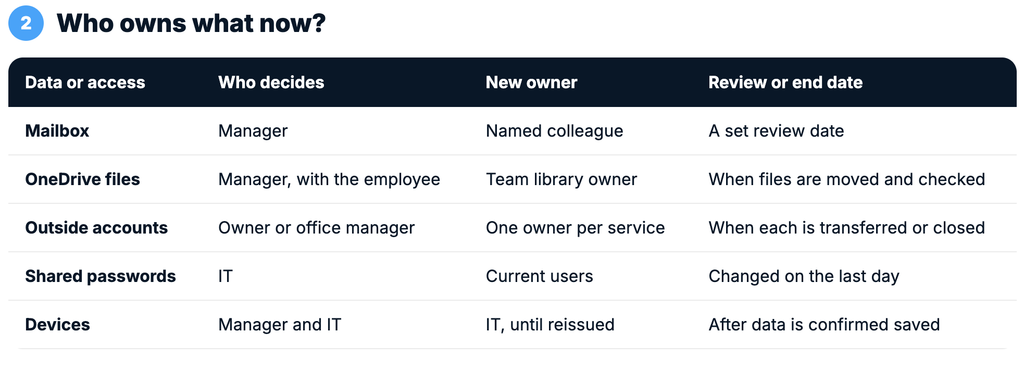
Without the last column, temporary access tends to become permanent by default.
Name one person accountable for the whole offboarding, from the first conversation to the final deletion. In a small business that is often the office manager, working with IT.
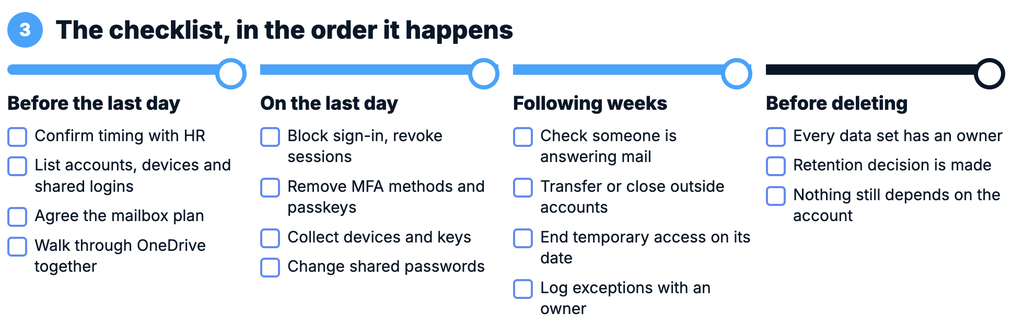
A useful offboarding process answers four questions for each system. Who owns it now? Who needs access? How long should that access last? What has to happen before the account or data is removed?
When those answers live in a repeatable checklist, the next client email reaches someone ready to respond, and important work no longer depends on one person's account.
If you're in the Montreal area, Syslogic can help document an offboarding process with your internal IT person or handle the technical steps as part of ongoing support.


