It is Sunday evening. A salesperson has a quote due Monday morning, the company laptop is at the office, and the family laptop is on the kitchen table. They sign in to the pricing spreadsheet, download a copy, finish the quote and email the PDF. It takes ten minutes, and nobody did anything unreasonable.
But there is now one more copy of company information on a computer your business may know nothing about. Personal-computer use often starts this casually, before anyone has discussed a policy.
Should you allow it? Sometimes, for defined work, provided the business can control access, handle company data appropriately, respect the employee's privacy, and support the arrangement. This article is about laptops and desktops. The controls that work on phones cannot be assumed to work the same way on them.
The appeal is real. The business avoids buying a laptop, at least at first, and the new hire can start right away. Employees often prefer their own computer, with its familiar keyboard and settings.
Compare the full cost, though. Setup, licensing, ongoing support and downtime belong on both sides of the comparison. Someone still has to check the device, configure access, explain the rules and help when something fails, and a computer that suits home use may lack the Windows edition, security tools or software compatibility the business needs.
Back to that Sunday-night quote. Depending on the setup, the spreadsheet could sit in Downloads, appear in a recent-files list, sync to personal cloud storage or be swept into a personal backup. None of that takes bad intent. Ordinary save and sync settings do it.
Ask IT to walk through one real task: open a document, edit it, save it and share it. Note every place a copy can land, and decide which destinations the business permits.
Microsoft 365 can help. An administrator can limit SharePoint access from unmanaged devices to browser-only, with no downloading, printing or syncing. Microsoft says this relies on Conditional Access policies, which carry licensing requirements, so it does not happen on its own. Even then, someone can photograph a screen, and "Anyone" sharing links are not covered. Set a realistic goal: fewer unnecessary copies, and access limited to what the person needs.
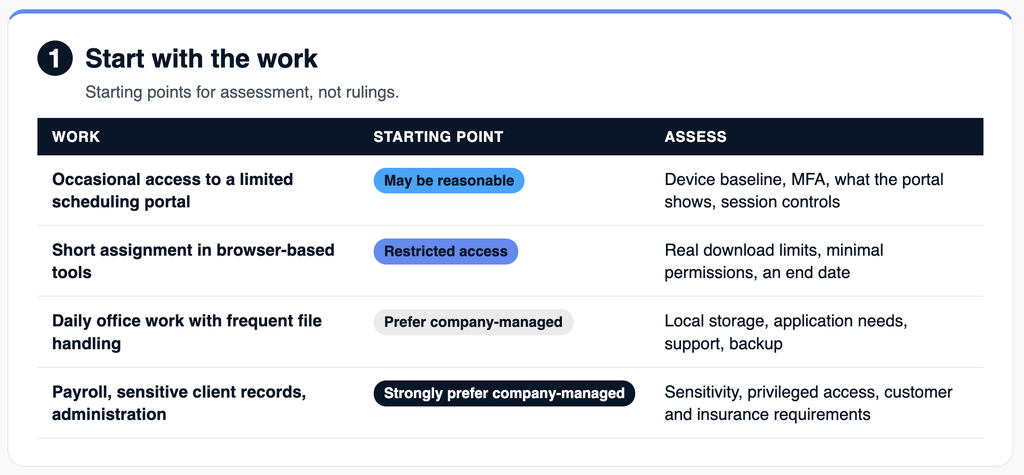
Every approved personal computer needs a minimum standard, including one used only through a browser. An infected computer can threaten a browser session as easily as an installed app. Raise the requirements as the information and permissions grow. A reasonable baseline:
MFA matters, but it protects the sign-in. Malware on the computer can still reach information and active sessions after a legitimate login. Device protection and account protection have to work together.
Ask who checks these requirements and what happens when a device falls behind. Employees should also know whom to contact about a lost computer, suspicious activity or a phishing click, including when the computer is their own.
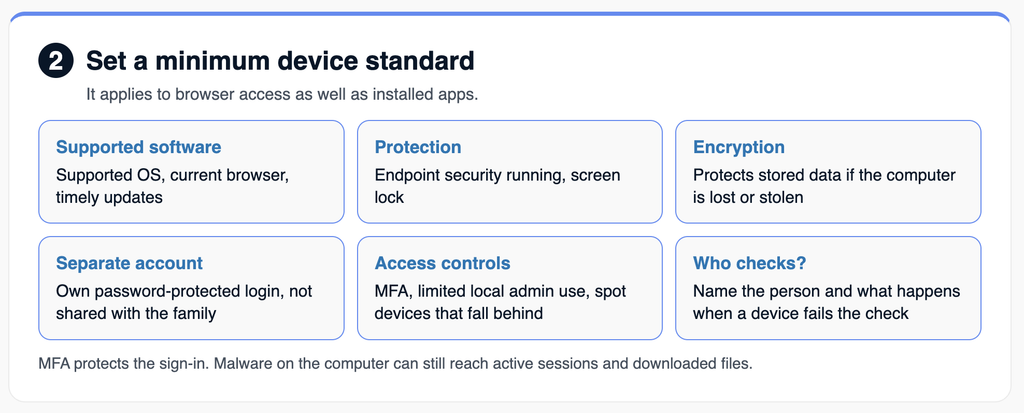
An employee may reasonably hesitate to install company software on the laptop that holds their family photos. Before enrolment, explain the actual setup: what device information IT collects, what the security tools report, whether technicians can connect remotely, what permissions the software needs, and what IT can remove and when. The answers depend on the platform, tools and configuration, so promise only boundaries your setup can keep.
Revoking an account, removing data from managed apps and wiping a whole device are different actions. Microsoft Intune's selective wipe removes company app data from an app, and Microsoft describes it as running when the app checks in. A wipe request is therefore not proof that removal finished, and it does not reach files saved elsewhere. Microsoft documents these app protection capabilities mainly for phones and tablets, so confirm what applies to a Windows or Mac computer before relying on them.
In Quebec, personal information stays under the private-sector privacy Act whatever its medium, and a business must protect it from collection to destruction. Security measures must be reasonable given the information's sensitivity, purpose, quantity, distribution and medium. That includes information on an employee's own computer. Have the person responsible for privacy review the arrangement, including any employee monitoring.
The laptop will not start on Tuesday morning, and the employee has a client meeting. Decide before the first call what support covers. IT might support work access and approved applications, and exclude hardware repairs, personal software and the home printer.
Agree on who pays for repairs, whether technicians may change settings, how personal files are protected during a repair, and what replacement equipment and working arrangements apply meanwhile. A requirement IT needs for work access should not depend on the employee's goodwill, so write it down in a form you can enforce.
Offboarding tests the arrangement: can the business end access and account for its information without taking possession of someone's personal computer? Disabling a work account does not remove a spreadsheet already saved to the desktop.
Plan the exit before it is needed:
A signed confirmation that files were deleted is worth having, as one part of the process. Neither it nor a technical control proves that every uncontrolled copy is gone, which is the best argument for keeping work information in controlled systems from the start. The same steps apply when someone changes roles or stops using a particular computer.
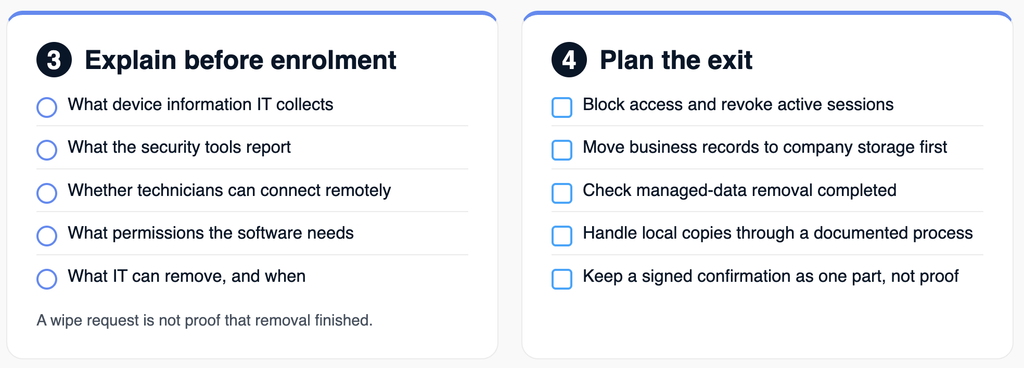
Assess the work, not the job title. A contractor may hold powerful administrative access, while a permanent employee may need only a limited portal. Use these as starting points for assessment, not rulings.
| Work | Starting point | Conditions to assess |
|---|---|---|
| Occasional access to a limited scheduling portal | A personal computer may be reasonable | Device baseline, MFA, what the portal shows, session controls |
| Short assignment in browser-based tools | Consider restricted personal-device access | Real download limits, minimal permissions, an end date |
| Daily office work with frequent file handling | Prefer a company-managed computer | Local storage, application needs, support, backup |
| Payroll, sensitive client records or administration | Strongly prefer company-managed equipment with tighter controls | Sensitivity, privileged access, customer and insurance requirements |
Check customer contracts and insurance conditions before making exceptions, and ask your broker how your policy treats personal devices.
Ownership and management are separate questions. A company-owned laptop can be poorly managed, and an employee-owned one can be enrolled in management. Each option below changes one or both.
For each person and each kind of work, write down:
[ ] Permitted work: the tasks, applications and information involved.
[ ] Device requirements: the security standard, and who verifies it.
[ ] Data handling: approved storage, and rules for downloads, sync and backups.
[ ] Privacy: what IT can collect, access, change and remove, explained before enrolment.
[ ] Support: responsibilities, costs, incident reporting and replacement equipment.
[ ] Exit: how access ends and how business records and company data are handled.
[ ] Review: an owner, and a date to revisit when the work, device or access changes.

If personal computers are already in use, start by learning what employees need to get done. Give them an approved way to do it, then deal with existing accounts and copies.
Syslogic helps Montreal businesses and internal IT teams assess these requirements, configure access, and decide where company-managed equipment will save time and trouble. Get in touch if we can help.

