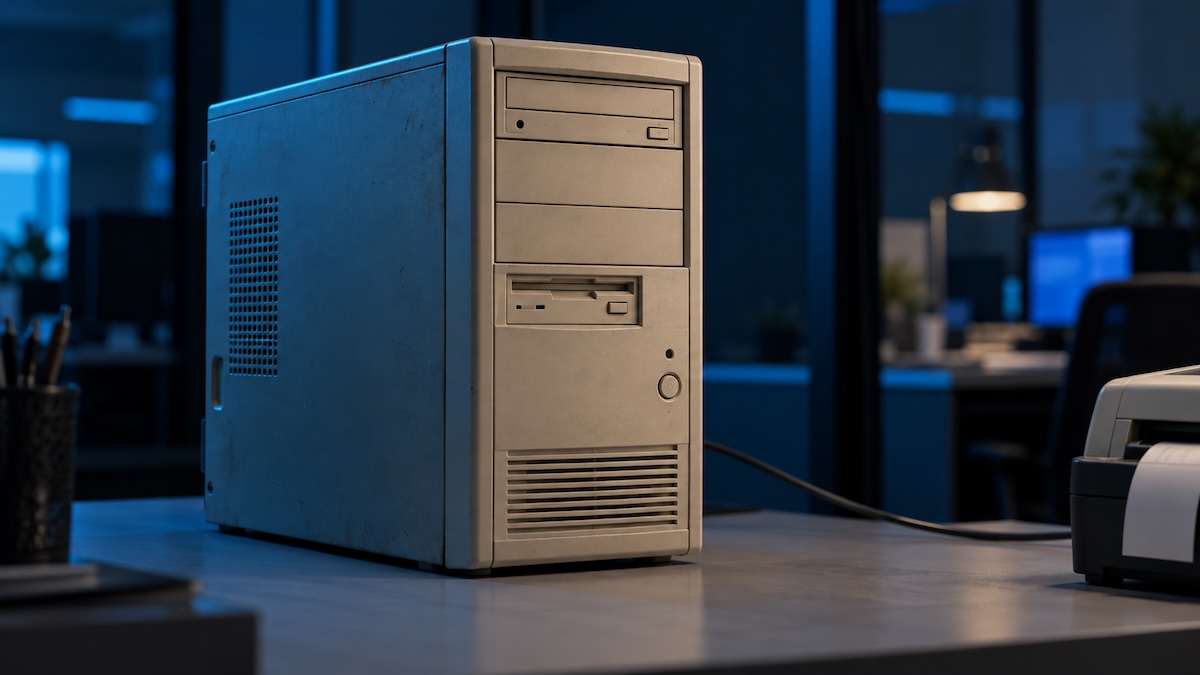
Just over a year ago, regular Windows 10 support ended. In many businesses, the remaining PCs are still doing jobs nobody has found an easy way to move: a label printer, a lab scanner, a program nobody wants to retest. The plan has to start there. (Specialized LTSC editions of Windows 10 follow their own lifecycle dates, so this article covers the standard editions most offices run.)
Yes. Microsoft's own lifecycle FAQ says Windows 10 PCs continue to work. The PC boots, Outlook opens and the accounting program runs, so nothing on the screen says anything changed. The difference sits underneath, where nobody looks until it matters.
Is it still secure?
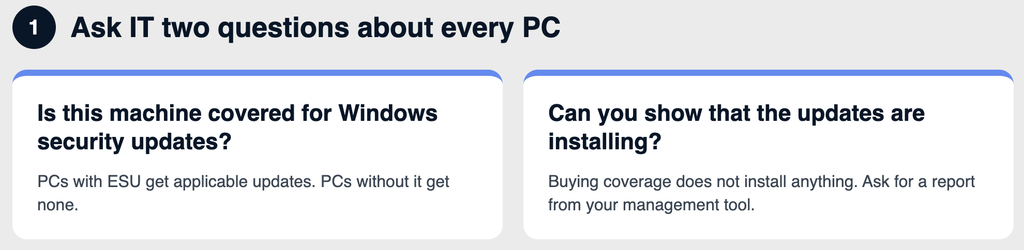
That depends on the machine. A PC enrolled in ESU receives applicable critical and important Windows security updates. A PC without ESU receives none, so it keeps every flaw it already has and gains any that turn up later. Two PCs that look identical on the desk can sit in very different places.
This is why IT needs to answer two questions for every remaining machine: is it covered for Windows security updates, and can you show that the applicable updates are installing? Buying coverage does not install anything. Ask for a report from your management tool that shows the updates arriving on each PC.
How much it matters also depends on the PC's job. A machine that browses the web and opens attachments all day deserves more worry than one that only talks to a label printer. Antivirus helps, but it does not repair the operating system underneath it.
It also changes what a bad day looks like. If an employee clicks a phishing link on one of these PCs, as we covered in An Employee Clicked a Phishing Link. What Should You Do Next?, the machine itself becomes one more thing IT has to check.
Extended Security Updates is a paid annual subscription that gives eligible Windows 10 PCs critical and important security updates after support ends. Microsoft treats it as a bridge to Windows 11. A few details matter to an owner:
Microsoft 365 Apps are a separate matter. Microsoft says security updates for the apps on Windows 10 continue until Oct. 10, 2028, with support limitations ([Microsoft source: link to add]). Those are application updates. They do not mean Windows itself is receiving security updates.
Hardware eligibility is the first check. Windows 11 needs a compatible processor, TPM 2.0 and a Secure Boot capable system, and Microsoft publishes the full requirements. Ask IT to check each model against them.
Eligible does not automatically mean worth upgrading. Weigh the PC's condition, application compatibility, peripherals, the migration work and how much useful life it has left. An eligible PC in good shape that runs its software gets upgraded on a schedule. A PC that fails the check, or is near the end of its life, is usually better replaced. ESU makes sense for a PC you cannot retire yet. For a PC you plan to retire anyway, it only buys time.
Plan a short heads-up for staff before an upgrade. The Start menu looks different, and a note in advance saves IT a few phone calls.
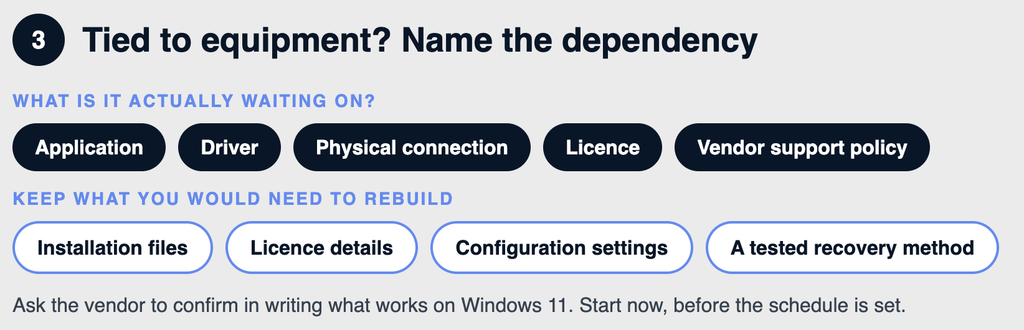
This part gets skipped most often, and it is usually where the real problem lives. Picture a warehouse label printer whose software was only ever written for Windows 10, or a scanner in a lab that nobody dares touch. The PC is not neglected. It is load-bearing.
Start the vendor investigation now, before the schedule is set. For each machine, name the actual dependency: an application, a driver, a physical connection, a licence or the vendor's support policy. Ask the vendor to confirm in writing what works on Windows 11. While you wait, preserve what you would need to rebuild: installation files, licence details, configuration settings and a recovery method someone has tested.
Then choose a lane for each machine:
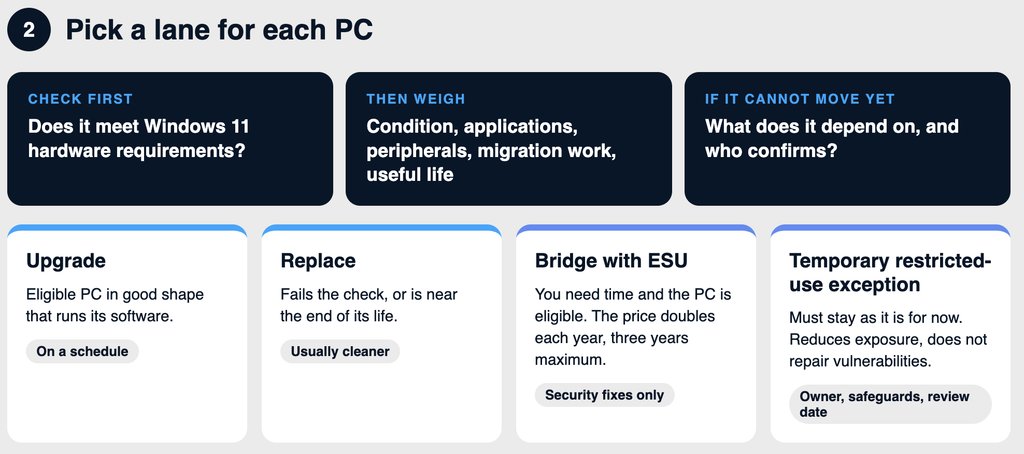
A restricted-use exception can sit alongside ESU. It means limiting what the PC can reach and what can reach it: no web browsing or email on that machine, and only the connections the equipment needs. IT should assess and test those restrictions first, because a rule that is too tight can stop the equipment working. Restrictions reduce exposure. They do not repair vulnerabilities. Every exception needs a named owner, written safeguards and a review date.
On any one PC, open Settings, then System, then About. The page shows the Windows edition and version. Across a whole office, IT can pull the same details from a device management tool or a remote monitoring tool, which is much faster than walking around with a clipboard. Walk around anyway for the machines that tools tend to miss: the reception PC, the boardroom PC, the one in the supply closet that runs the door system, and the laptop a former employee left in a drawer.
Keep the list simple. Five columns are enough to start:
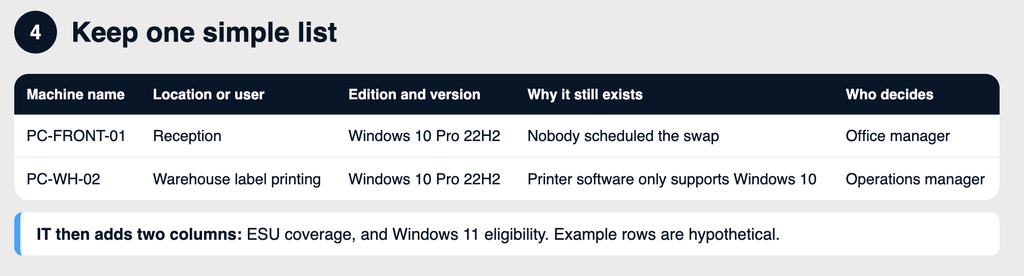
IT then adds two columns of its own: whether each PC is covered by ESU and whether it meets the Windows 11 requirements. The fourth column does the most work. "Nobody scheduled the swap" and "the vendor will not support Windows 11" lead to very different plans.
Sort the list into the four lanes and rank it by exposure, business impact, update coverage and recovery options. PCs used for email and browsing every day come first, and so does any PC with no update coverage. Equipment-tied machines are ranked the same way. Their vendor questions start now, even when their migration date comes later.
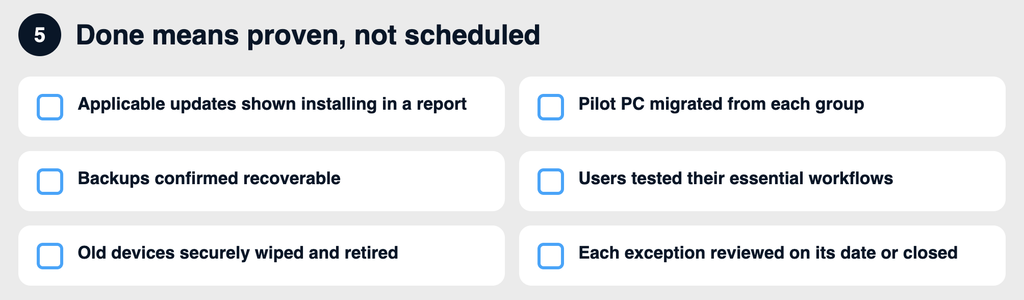
Before moving the rest of a group, run a pilot on one representative PC from it. Confirm first that recoverable backups exist. Have users run their essential workflows from start to finish, and retire old devices securely once the replacement works. When you hand the list to whoever sets the budget, include the full cost of migration: hardware, licences, vendor fees, IT time, data transfer and disposal.
Two outside conversations are worth having. Your Microsoft reseller can confirm eligibility, entitlements and Canadian terms. Your insurance broker can tell you how to describe remaining Windows 10 PCs on a renewal form. Questionnaires like the one in Your Cyber Insurance Renewal Is Coming Up. Is Your IT Ready for the Questionnaire? ask what your environment looks like, and answering from a real list beats answering from memory.
Here is the whole plan as a short set of actions:
If you would like a second pair of eyes on the list, Syslogic's Montreal team can help.

